MX-AI
The MX-AI group lets you build and operate agentic AI Fabrics — orchestrated collections of LLMs, MCP tool servers, and agents. An AI Fabric defines how models are wired together, which tools each agent can invoke, and how agents communicate with one another. An active MX-AI license is required.
- Fabrics —
/ai-fabrics - Fabric Builder —
/fabric-builder - Chats —
/ai-chat
Fabrics
Route: /ai-fabrics
Live view of deployed AI fabrics. Header stats count Fabrics, Agents, MCP Servers and LLMs. The Deploy Fabric button opens the Fabric Builder.
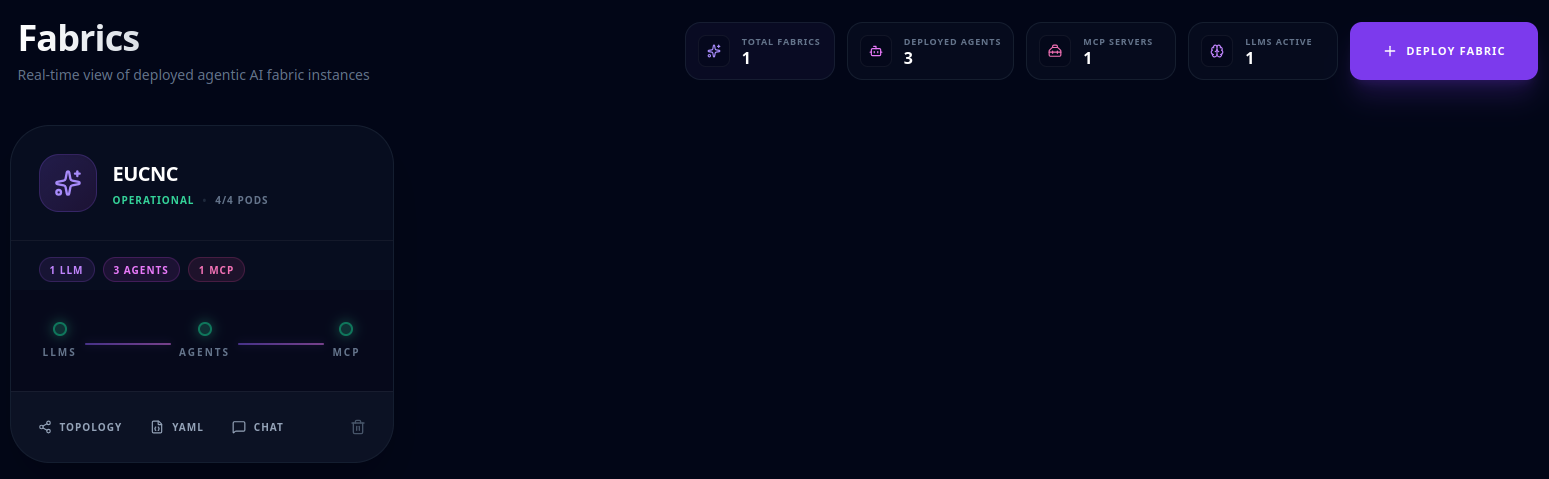
Each card shows the fabric name, a status pill, pod readiness (e.g. 3/4 Pods) and badges
counting its LLMs / Agents / MCP. A central diagram shows the readiness of each component
class, colour-coded by health.
Card actions:
- Topology — open the fabric's agent/MCP graph overlay.
- YAML — view the manifest (with a Copy YAML button).
- Chat — open Chats for this fabric (only if it has agents).
- Delete — remove the fabric.
Fabric Builder
Route: /fabric-builder
The Fabric Builder is a tab-based wizard for assembling and deploying an AI Fabric. The persistent header provides Preview YAML, a live Topology graph of the current design, and the Deploy Fabric action. The left sidebar tracks progress across four configuration steps, each showing a count badge of configured components.
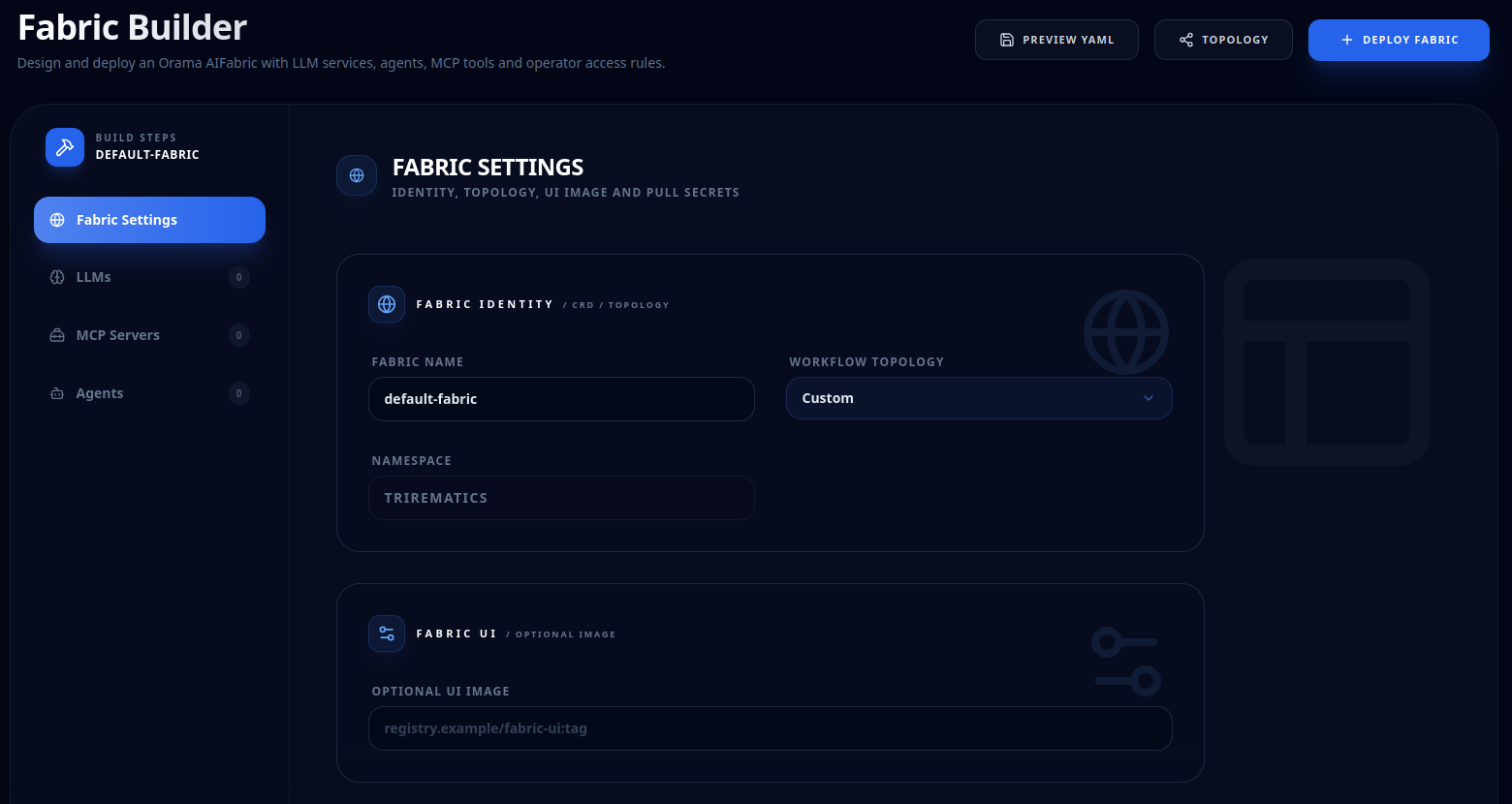
Fabric Settings ●
Identity and platform settings for the fabric:
- Fabric Name — unique name for the deployment.
- Workflow Topology — Supervised routes all agent communication through a designated supervisor; Custom allows free-form inter-agent routing.
- UI Image — optional container image for a custom fabric web interface.
- Image Pull Secrets — list of Kubernetes pull-secret names for private registries.
LLMs ●
At least one LLM must be registered before agents can be added. Each LLM card configures:
- Service Name — internal identifier referenced by agents.
- Provider — the model backend: OpenAI, Anthropic, Ollama, Local, or others.
- LLM Model + Model ID — the model family and specific model version to use.
- Base URL — required for self-hosted backends such as Ollama.
- Credentials (Secret Name / Secret Key) — a reference to a Kubernetes Secret holding the provider API key; omit for unauthenticated local backends.
MCP Servers ●
MCP Servers are optional sidecar workloads that expose tools to agents via the Model Context Protocol. Each server card configures:
- Server Name — unique identifier within the fabric.
- MCP Model — the composition model that defines the server's toolset.
- Container Image — the server workload image.
- RIC / SMO Access — toggles that grant the server read/write access to the Near-RT RIC or SMO APIs.
- Environment Variables — key/value pairs injected into the server container.
Agents ●
The Add Agent button is disabled until at least one LLM exists. Each agent card has:
- Runtime — Agent Name, Agent Model, Container Image, bound LLM Service, Role (Supervisor — only one allowed — or Worker) and ICP (A2A / MCP).
- Communication — select Agent Dependencies (peer agents) and which MCP Servers this agent may invoke.
- Access — RIC and SMO access levels (Restricted / Notice / Functional / Operational).
- Environment — env-var rows.
Validate & deploy
Preview YAML shows the AI Fabric manifest (with Copy YAML). Deploy Fabric validates first; a rose validation errors banner lists any problems (e.g. a custom LLM/agent/MCP missing its image or model ID). Field-level errors highlight the offending input in red.
Chats
Route: /ai-chat (or /ai-chat?fabric={name})
An interactive console for talking to a fabric's agents.
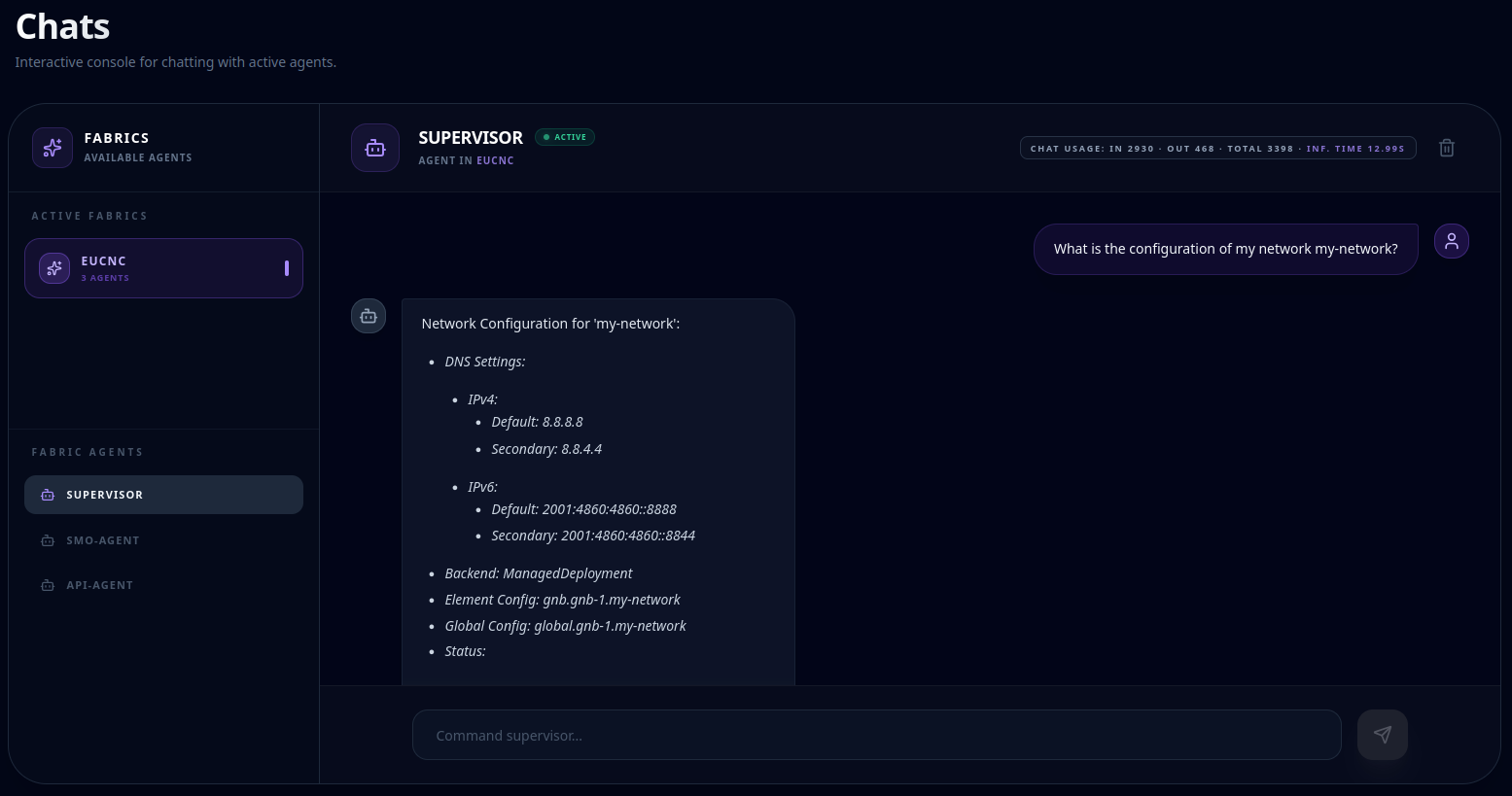
Sidebar
- Active Fabrics — pick the fabric to talk to (switching clears the conversation).
- Fabric Agents — pick the target agent; the supervisor carries a Lead badge.
Conversation
- User messages appear right-aligned; agent messages stream in with live markdown rendering.
- A status line (spinner) shows the agent's activity ("INITIALIZING", "CALLING TOOL"…).
- The header shows token usage stats (in / out / total) and inference time.
- Clear History purges the context.
- Where enabled, a Raw / Hide Raw toggle reveals the raw event JSON beneath a message.
Sending a message
Type in the input box (it auto-grows) and select Send (disabled while a reply streams).