Connectivity (5G / O-RAN)
Design networks in the Intent Builder, watch them in Networks and Topology, register and test UEs in Terminals, and manage runtime apps in O-RAN.
- Networks —
/networks - Intent Builder —
/builder - Terminals —
/terminals - Topology —
/topology/{name} - O-RAN —
/oran,/xapps,/rapps
Networks
Route: /networks
Every deployed network is a card with its name, pod readiness (e.g. 3/4 Pods) and a small
Core → Edge → Access diagram whose lines are coloured by health. Build Intent opens the
Intent Builder.
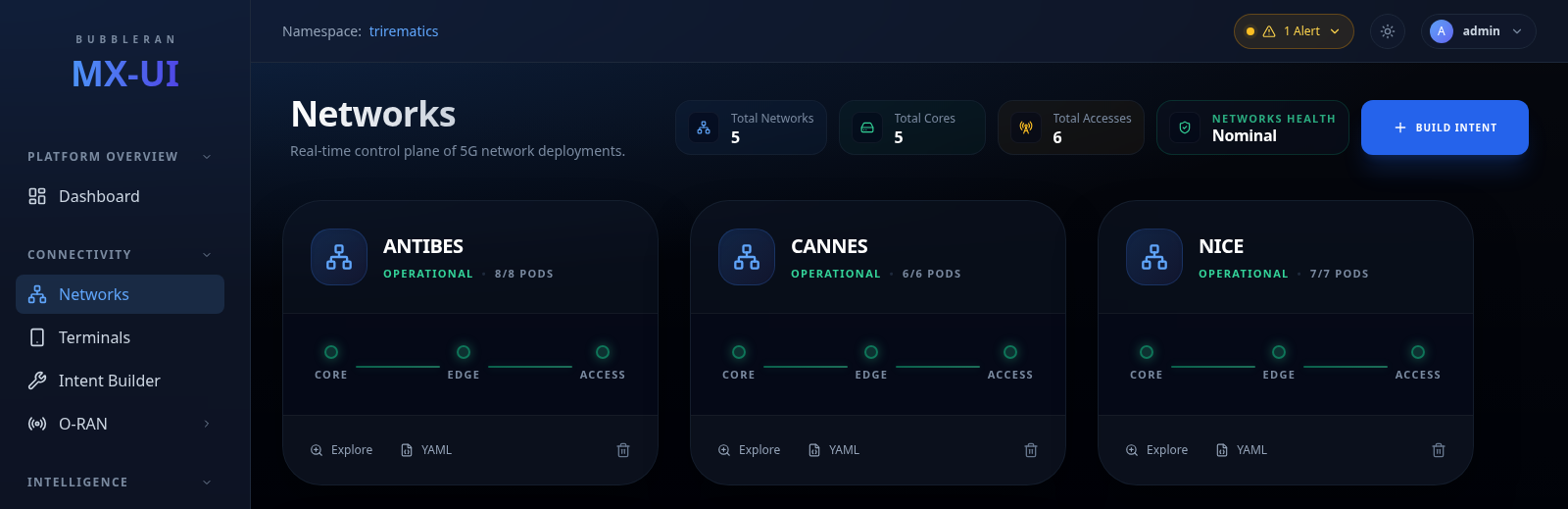
Each card offers Explore (open it in Topology), YAML (the full manifest) and Delete.
Intent Builder
Route: /builder
A guided editor for a whole network: slices, cores, an optional RIC, RAN access nodes and UEs. It emits the Kubernetes manifests, so you review them with Preview YAML and send them with Deploy Network. Deploy validates first and lists any problem in a banner.
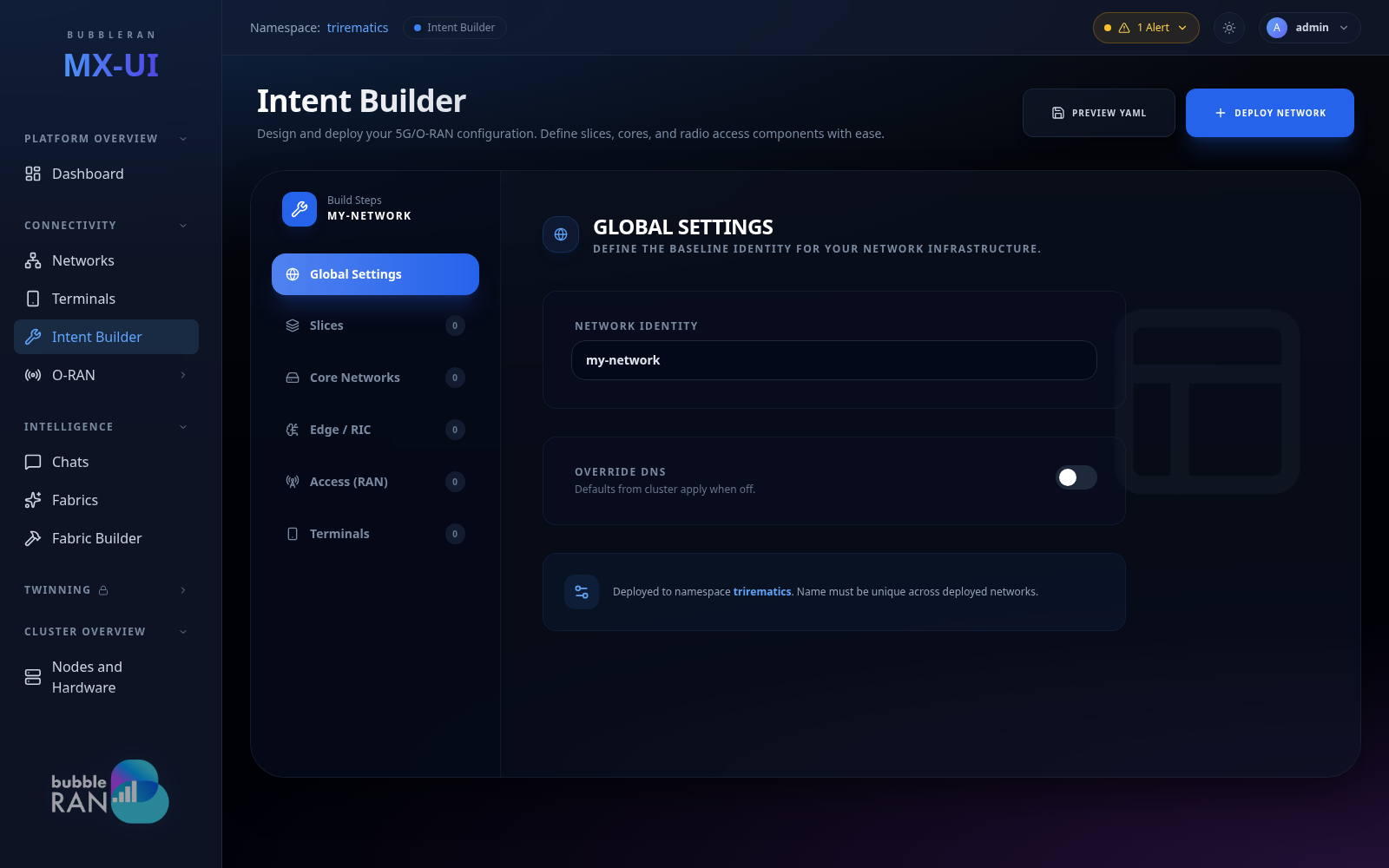
Work through the tabs from top to bottom. Later tabs pick from what you created earlier: a gNB chooses among your cores, a UE among your slices and gNBs. Deleting an entry clears it from every tab that referred to it.
The software choices (OAI, OCUDU, BubbleRAN…) come from the installed composition models, so a stack you do not see has to be installed first.
What each tab decides
| Tab | You decide |
|---|---|
| Global Settings | The network name (unique in the namespace) and optional custom DNS resolvers. |
| Slices | PLMN, DNN, network mode (IPv4 / IPv6 / dual stack), SST and SD. Terminals subscribe to a slice. |
| Core Networks | The core stack and its network identity. Optionally pin it to a node. |
| Edge / RIC | A Near-RT RIC, and the xApps that ship with the network. |
| Access (RAN) | Architecture, radio hardware, which core and RIC the node connects to, and the cell configuration. |
| Terminals | The UE's hardware, SIM credentials, slice, core and preferred gNB. |
xApps added in the Edge / RIC tab are part of the network: they are created and deleted with it. To add or remove an app on a running network, use Dynamic xApps.
Access (RAN): hardware shapes the rest
The Hardware Tier you pick decides which models, devices and scheduling options appear:
| Tier | Example | Node placement |
|---|---|---|
| Simulated | RF simulator | No radio. Any node. |
| SDR-based | USRPs | The SDR is attached to one machine, so the workload is pinned to that node automatically. |
| Commercial | O-RU on the fronthaul | The RU can be reached from several nodes, so Affinity Pin is disabled and the operator places the DU on a node that reaches it. |
| External | LiteON all-in-one | Not managed by the platform, so you can pin a node manually. |
Devices come from the hardware the cluster discovered; one already in use by another network cannot be selected.
Cell configuration only offers combinations the model and the device both support: band, then subcarrier spacing, then bandwidth. An unsupported combination is flagged on validation.
Terminals: choose a hardware profile
The Hardware Profile decides what the UE runs on and what you need to provide:
| Profile | Available | You need to |
|---|---|---|
| Simulated | OAI UE | Nothing. It runs in software on the radio of its gNB. |
| SDR-based | USRPs | Select the SDR from the devices available in the cluster. |
| Commercial | Quectel modem | Select the modem from the devices available in the cluster. The SIM identity comes from the modem. |
| External | A UE managed outside the platform | Only register it. It cannot be tested or opened from the console. |
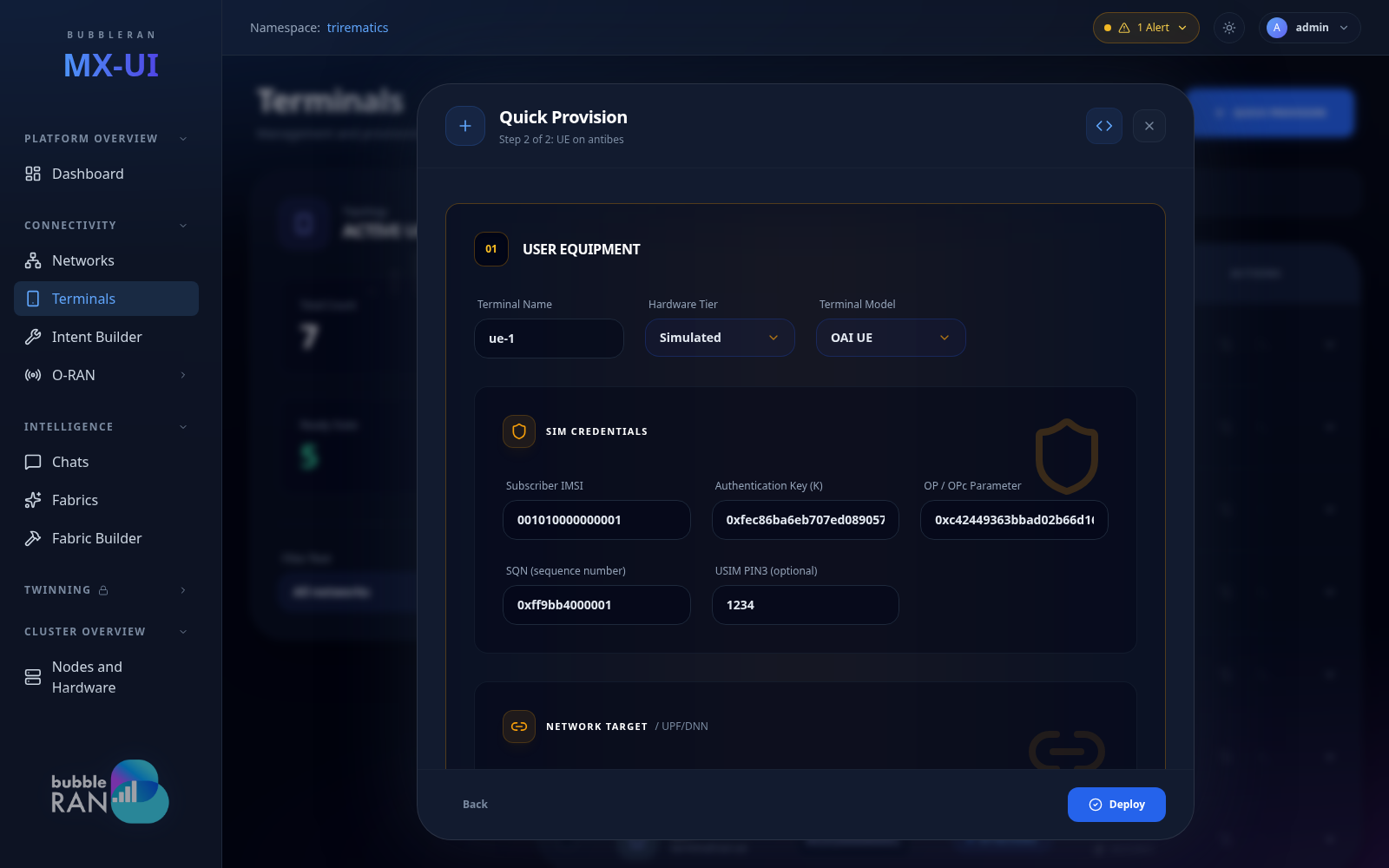
For every UE you also set its SIM credentials, the slice it subscribes to, its core, and optionally a Preferred Cell Access (the gNB it should attach to). You can also add UEs to a running network with Quick Provision.
Terminals
Route: /terminals
Every UE in the cluster, whether it was created with the Intent Builder or added later with Quick Provision. Use Filter Fleet to look at one network or all of them.
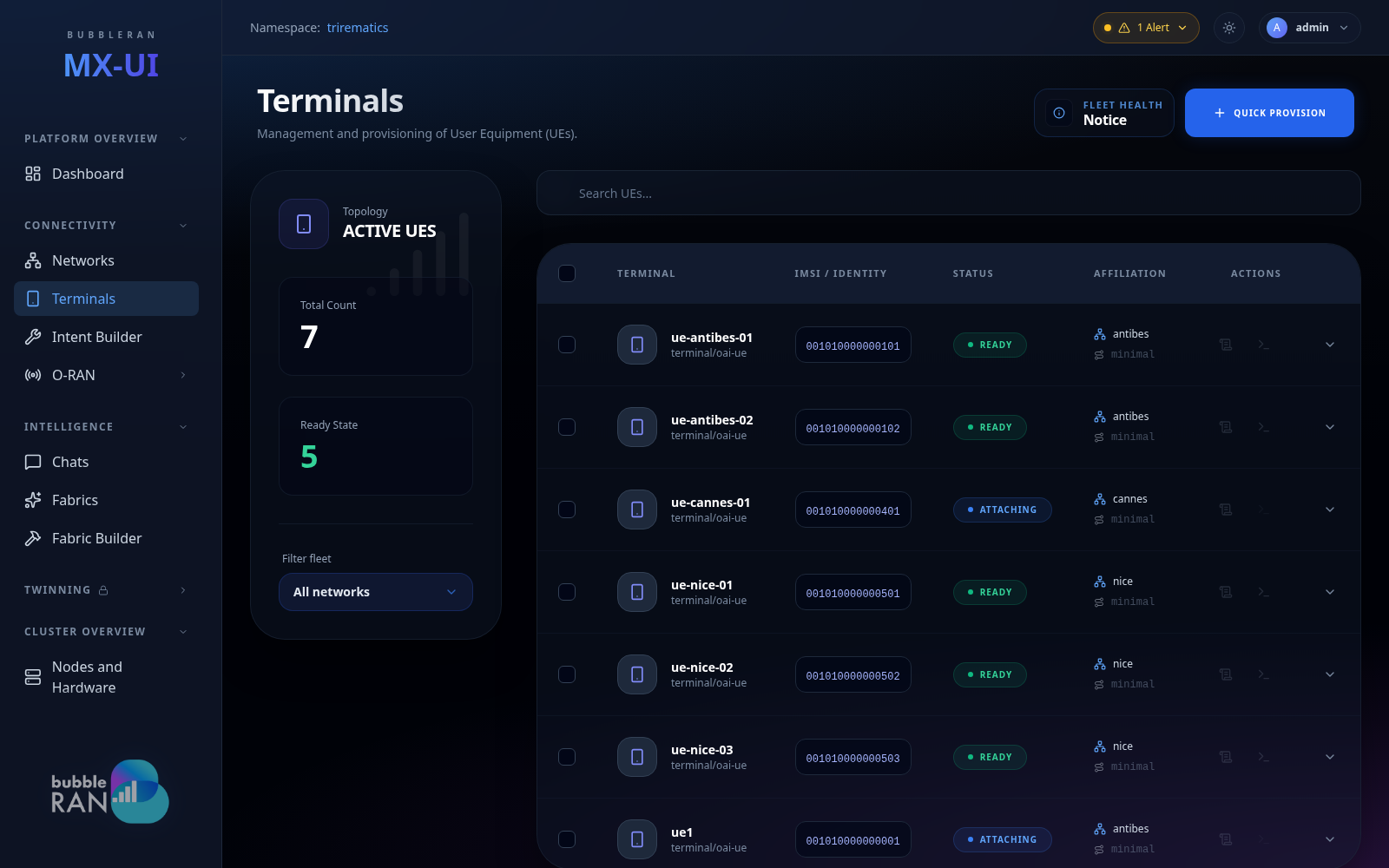
The table shows each terminal's name, model, IMSI and status: Ready (attached), Attaching, or Failed (open the logs). Expand a row for its credentials (masked until you click the eye), its connected cores and slices, and its band and preferred gNB.
Every terminal has Live Logs (the attach pod's signalling and application output) and, once it is Ready, Shell Access into the pod.
Quick Provision
Adds one UE to a deployed network without opening the builder. Pick the network, then fill in the same UE editor the Intent Builder uses, already set up for that network. It validates the same way and has Preview YAML, so a UE accepted here is one the builder would accept.
Performance monitor
Select one or more terminals, in one or more networks, and open the Performance Overlay to run a throughput test (DL / UL, area chart) or an RTT test (line chart). Tests run per UE or in a batch, each with its own duration, and plot live.
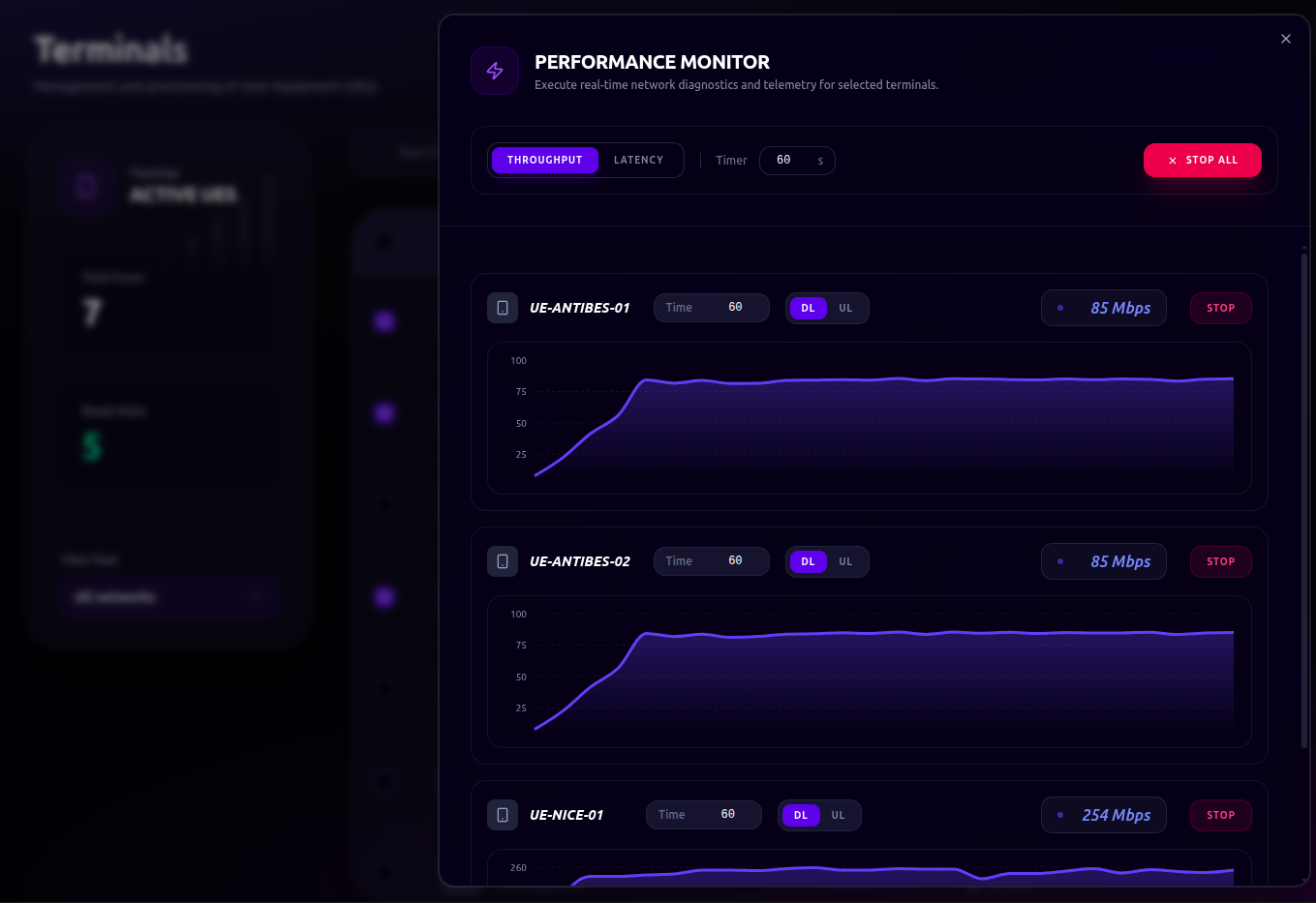
Tests need a terminal that is Ready and managed by the cluster. External UEs cannot be tested.
Topology
Route: /topology/{networkName} — click Explore on a network card.
A live graph of one network, from slices and cores through the RIC and RAN nodes down to the attached terminals. Edges are the signalling paths. Each node's outline shows its state: solid green is healthy, pulsing amber is deploying or reconciling, and solid red is an error.
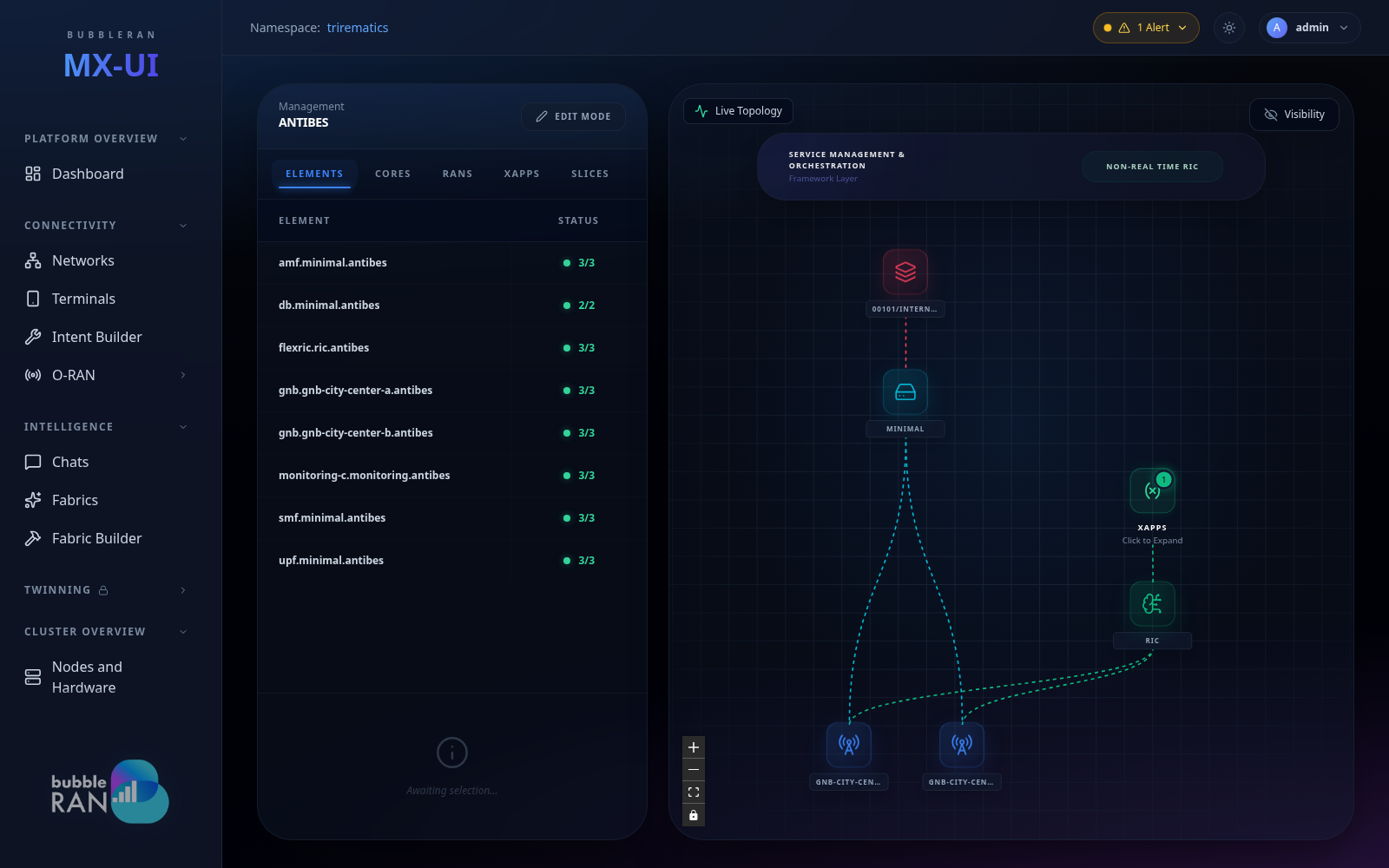
Pan, zoom and fit the view as usual. In a busy network, hide layers such as terminals or rApps with the visibility toggles, and collapse the xApp / rApp groups of a RIC. The pod list on the left can be filtered by type.
Element detail
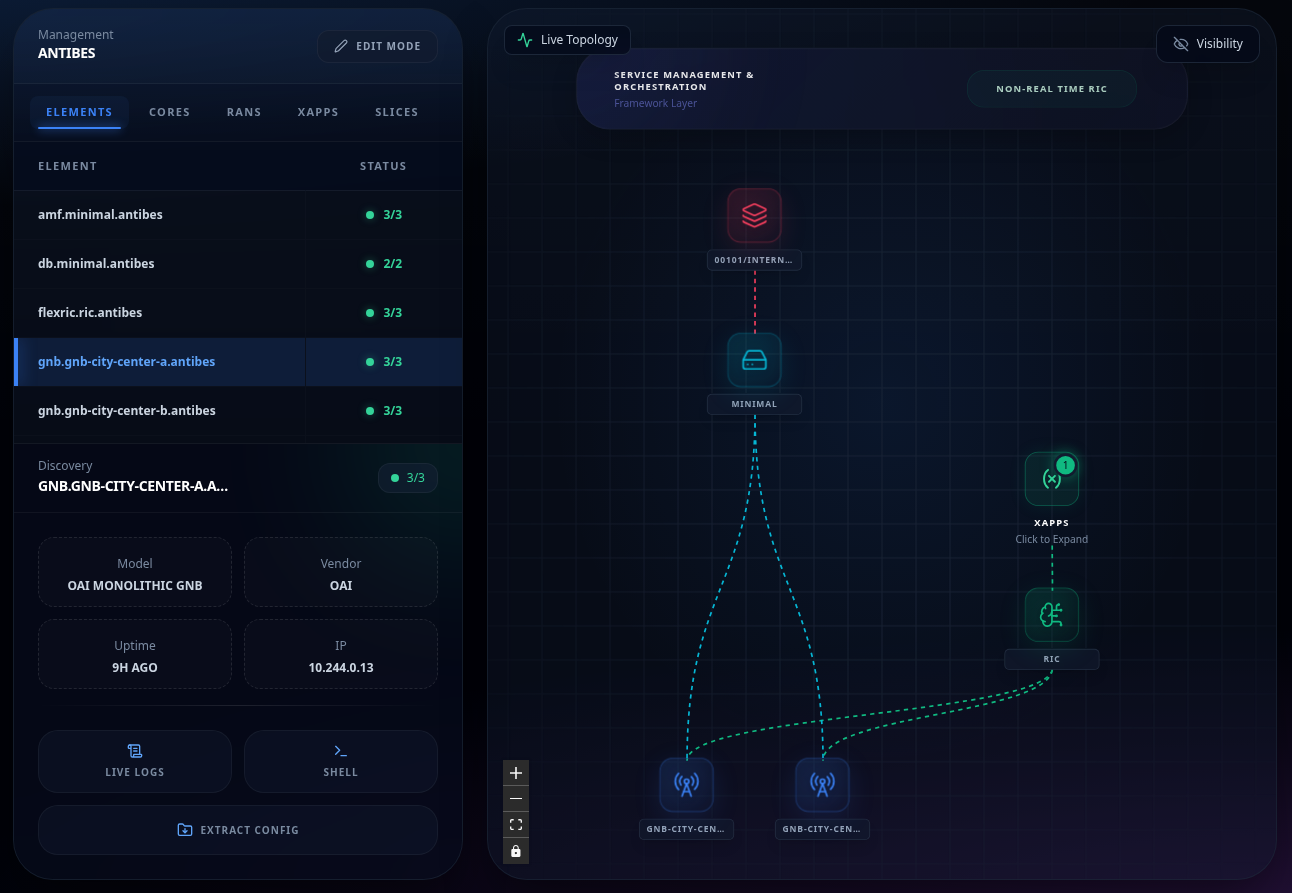
Selecting a node (or a pod row) opens a panel with its model, vendor, uptime and IPs, plus Live Logs and Shell. Extract Intent Config downloads the pod's configuration files, which is useful for audits and for support cases.
Live editing
Edit Mode (top left; it reads Live Edit while active) lets you change the deployed network. The components glow blue; select one and a side panel opens with the same editor as the Intent Builder, where you can add, change or delete components.
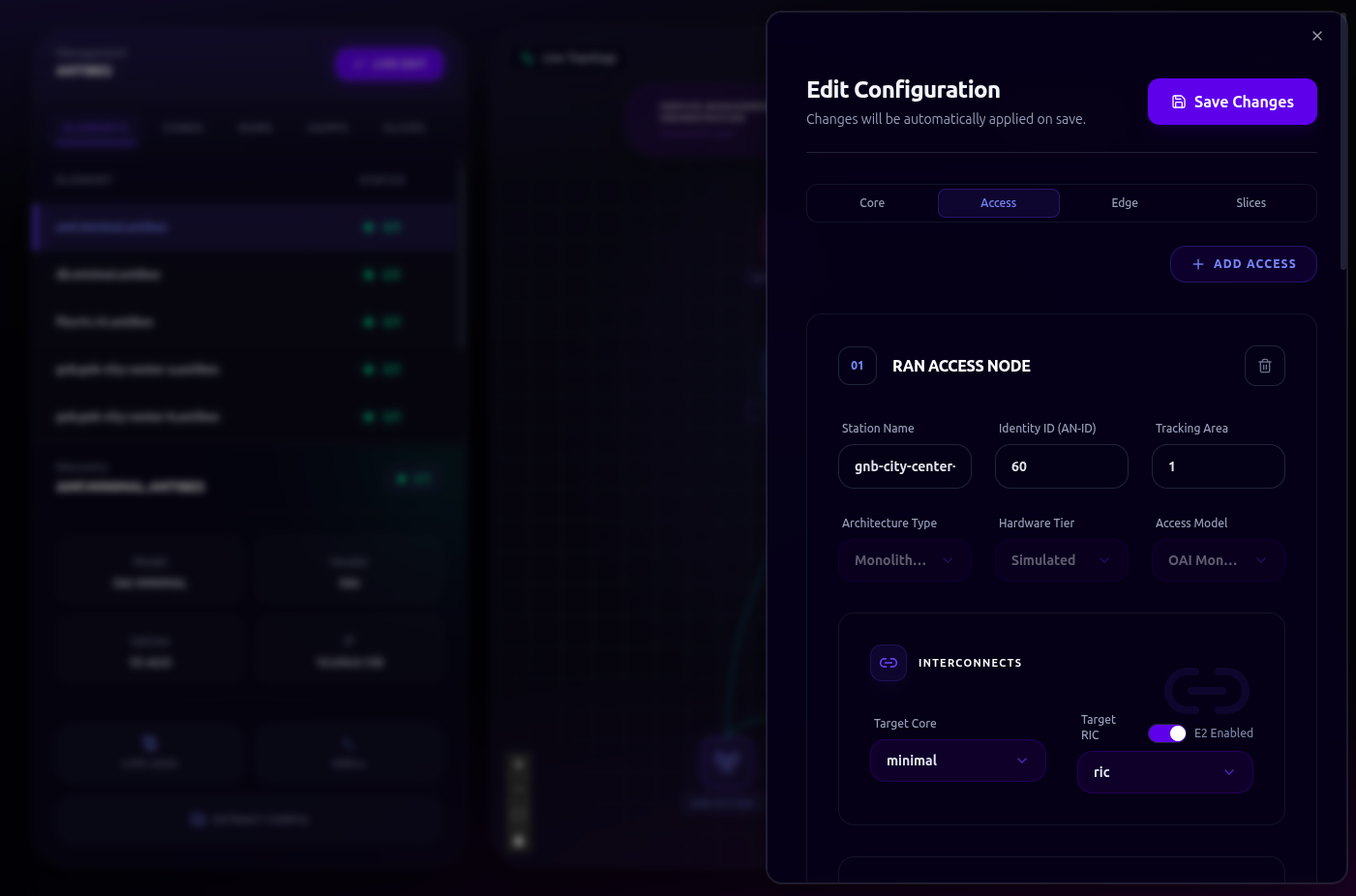
Live editing cannot yet change the hardware type of an access node. Dynamic xApps and rApps (the ones with a DYN badge) cannot be edited here either; manage them in O-RAN.
O-RAN
Route: /oran
Runtime management of Dynamic xApps and Dynamic rApps: apps you deploy and remove without touching the network itself. (xApps added in the Intent Builder are part of the network instead.)
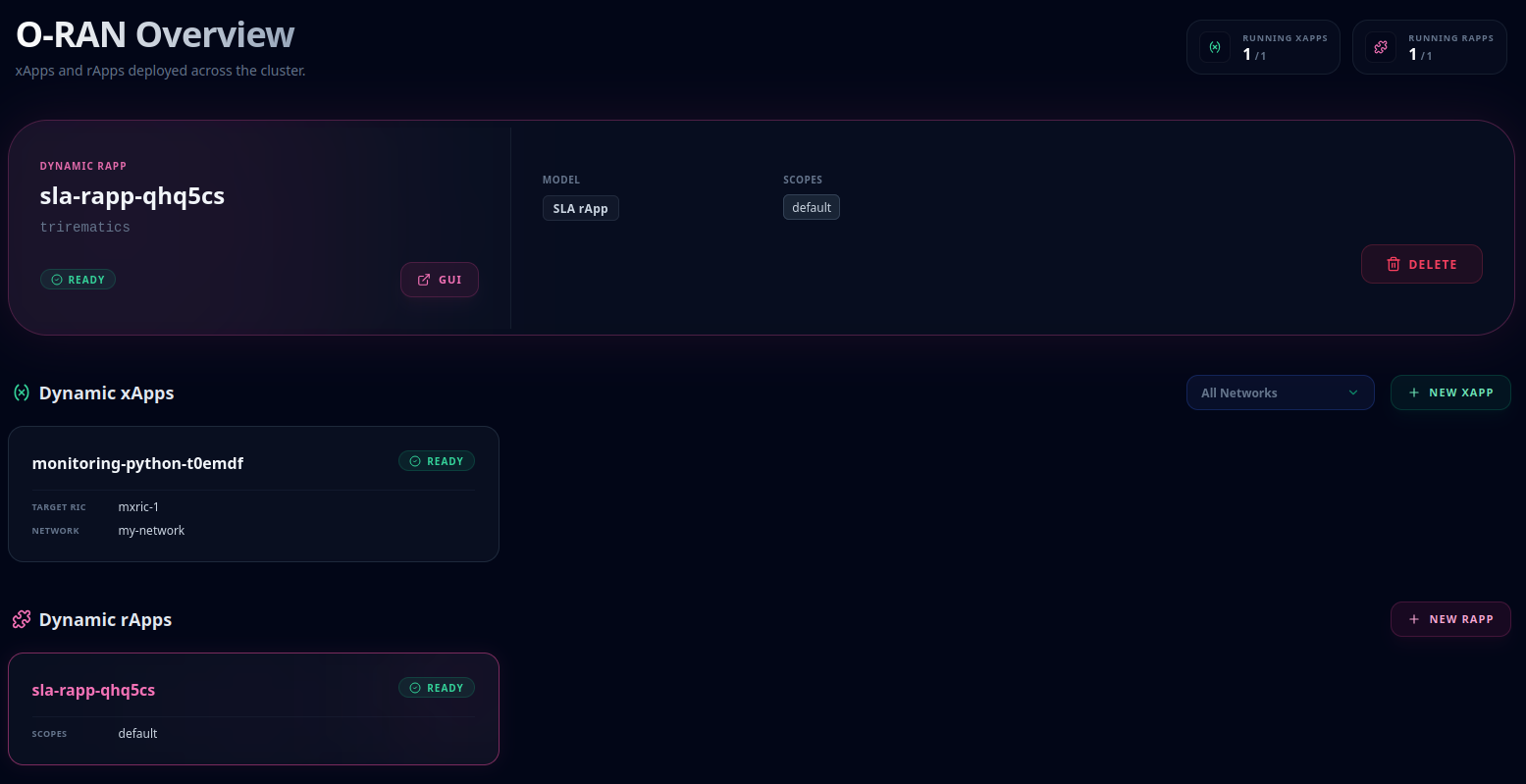
The header counts running xApps and rApps. The network filter applies to xApps only, since rApps run at cluster level. Select a card to see its status or delete it. New xApp and New rApp open the builders.
xApps
Route: /xapps
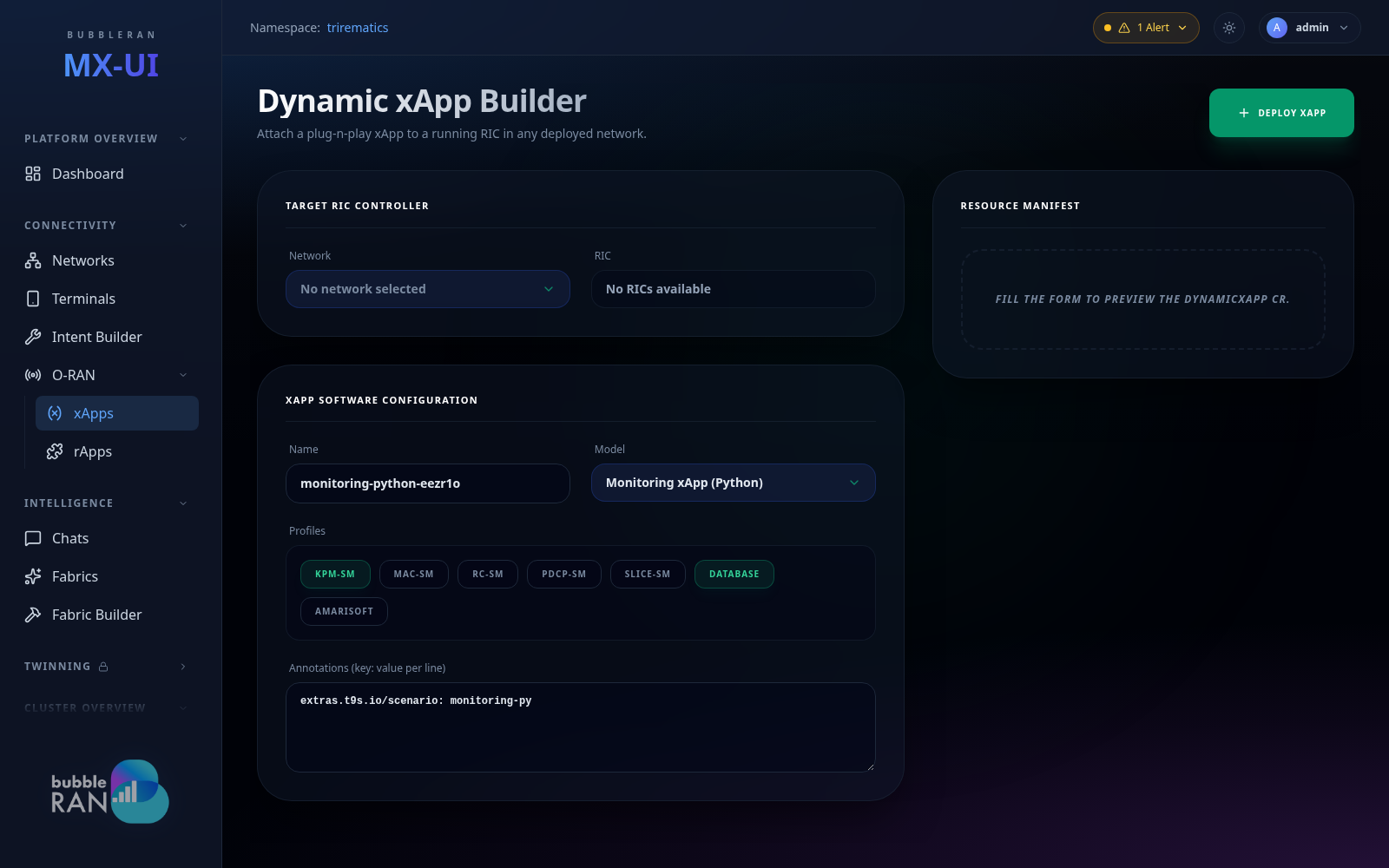
Pick a network and one of its RICs, then name the xApp, choose a model and any model-specific options. The manifest preview updates as you edit.
rApps
Route: /rapps
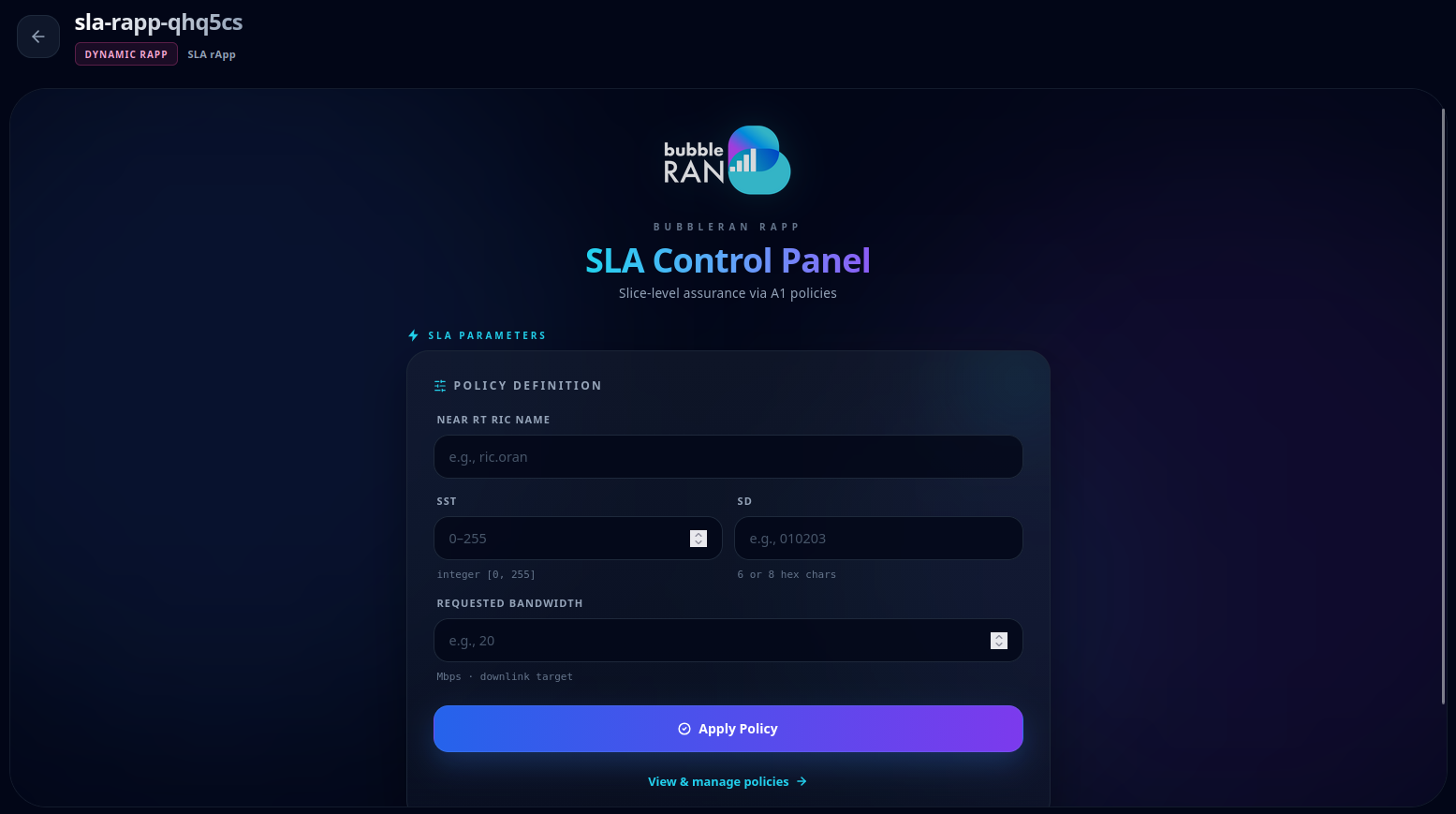
Same flow, but rApps run on the Non-RT RIC, so there is no network to pick. An rApp that ships its own UI has a GUI button on the O-RAN page, which opens it full screen in the console. The image shows the integrated SLA rApp.