Lab 3: Deploying your AI-enabled application as an edge-app
In Lab 1 and Lab 2 the CDK packaged an xApp. In this
lab you use it for any other containerized application, typically an AI inference service
that UEs consume over the 5G network. The CDK builds the image, stores it in the
cluster-local registry and runs it in the trirematics namespace, next to the RAN and the core.
The running example is the YOLO edge app from the public BubbleRAN blueprints repository: a FastAPI service that receives camera frames from UEs, runs YOLO object detection on them and serves the annotated feeds as live streams. Any web application that follows the rules in Step 1 works the same way.
Every step of this lab uses brc and, to test the image before pushing it, docker. You do
not need kubectl. The table in brc commands used in this lab
lists which command answers which question.
What you will build
A UE sends a camera frame over the 5G network. The frame leaves the core at the UPF and reaches the edge-app, which runs YOLO on it and answers with the detected objects. You watch the annotated feed from the MX-UI.
Words used in this lab
| Word | Meaning here |
|---|---|
| Image | The packaged application: code, libraries and model weights in one file the cluster can run. |
| Registry | Where images are stored. Each cluster has its own, registry.<cluster>.local:5000. |
| Pod | One running copy of an image in the cluster. brc cdk app status and brc observe show it. |
| Service | A stable name and port in front of a Pod, for example yolo-edge:9000, so clients do not need the Pod's address. |
| Element | A Pod that a Network owns, such as the gNB, the UPF or your app on the managed path. brc observe lists them. |
| CompositionModel | The package that tells a Network how to run an Element. You reference it with model: in the Network file. |
| Edge-app | Your application, running in the cluster next to the core and reachable from UEs. |
Detached or managed
There are two ways to run the application at the edge:
| Detached edge-app | Managed edge-app | |
|---|---|---|
| Created with | brc cdk app deploy | a CompositionModel, referenced from a Network's edge: section |
| Owned by | the CDK, outside any Network | the Network, as an Element |
| Lifecycle | runs until brc cdk app delete | created and deleted with the Network |
| Reached on | a Service: in-cluster, NodePort, or a fixed address outside the cluster | the Element's address, in the cluster only |
| Probes, GPU, node selector, runtime class | yes, from the spec | probes only |
| Followed with | brc cdk app status, brc cdk app logs | brc observe, brc extract status, brc extract logs |
Use the detached path while you develop the application, or when it must outlive the networks around it. Use the managed path when the application is part of the scenario, like the xApp in Lab 2. Steps 1 to 4 are common to both.
The whole flow
brc commands used in this lab
| You want to | Detached edge-app | Managed edge-app |
|---|---|---|
| Build the image | brc cdk app build | brc cdk app build |
| Store it in the cluster | brc cdk app push | brc cdk app push |
| Run it | brc cdk app deploy | brc cdk app model install, then brc install network <file> |
| See if it runs, and where | brc cdk app status | brc observe, brc extract status <element> |
| Read its logs | brc cdk app logs [-F] | brc extract logs <element> |
| Get its address | brc cdk app status (Service line) | brc extract port <element> http |
| Check the UE is attached | brc test rtt <terminal> gateway | brc test rtt <terminal> gateway |
| Run a command in the UE | brc cic <ue-element> shell -- <command> | brc cic <ue-element> shell -- <command> |
| Open it on your laptop | brc expose <app> -n trirematics | MX-UI Services tab |
| Remove it | brc cdk app delete | remove it from the Network, then brc cdk app model delete |
Prerequisites
- You are on the control-plane node of your cluster (see the Overview),
with a
brcthat includesbrc cdk app(brc cdk app --help). - You have logged in once with
brc login <username>. This creates thebubbleran-hubsecret, from which the CDK reads the registry credentials. dockerandgitare available on the node, anddocker buildcan reach the internet (PyPI, the PyTorch index and the YOLO weights).
As in Lab 1, the org name and the registry host come from the kubeconfig cluster name. The default image reference of an edge-app is:
registry.<cluster>.local:5000/telco-fabric/<org>/<app-name>:latest
Step 1: Get the application
git clone https://github.com/bubbleran/blueprints.git
cd blueprints/apps/yolo-edge
ls
Dockerfile README.md app-gpu.yaml app.py app.yaml requirements.txt
app.py is the service, Dockerfile builds it, app.yaml is the CDK spec for the CPU
variant and app-gpu.yaml the one for an NVIDIA GPU. The application exposes:
| Endpoint | Returns |
|---|---|
POST /ingest/frame/{camera} | Runs detection on a JPEG frame. Form fields: frame, actor_id, ts (optional). |
GET / | Page with every live feed and its detections. |
GET /stream/{actor}/{camera}.mjpg | Live MJPEG stream of the annotated frames. |
GET /frame/{actor}/{camera}.jpg | Latest frame, annotated unless ?annotated=0. |
GET /actors, GET /detections/{actor} | Feeds and detections as JSON. |
GET /health | Status, model and the inference device in use. |
GET /sample.jpg | A test picture, to try the app without a camera. |
Each sender (actor_id) and camera pair is a separate feed. Feeds that send nothing for
60 seconds are hidden.
To package your own application instead, it has to meet the same rules, because in the
cluster it has no display, no files you can edit by hand, and no localhost shared with
other machines:
- Listen on
0.0.0.0, not127.0.0.1. - Expose at least one TCP port, and know which one serves the UI.
- Take its configuration from command arguments or environment variables, not from a
file you edit by hand. Check which of the two it reads:
yolo-edgereads arguments only (--model,--conf,--imgsz,--device). - Offer a health endpoint for the probes.
yolo-edgeservesGET /health. - Know the base path it serves from.
yolo-edgeserves from/and uses relative links, which matters for the MX-UI tab in Step 8.
GUI programs and clients that run on the UE side are not candidates.
Step 2: Read the Dockerfile
The image is self-contained: dependencies and model weights are installed at build time, so the application needs no internet access when it starts.
FROM python:3.11-slim

ENV PYTHONDONTWRITEBYTECODE=1 \
    PYTHONUNBUFFERED=1 \
    PIP_NO_CACHE_DIR=1 \
    YOLO_CONFIG_DIR=/tmp/Ultralytics

WORKDIR /app

# PyTorch wheel index: CPU by default. For an NVIDIA GPU use a CUDA build the node's
# driver supports, for example https://download.pytorch.org/whl/cu128 (see README).
ARG TORCH_INDEX_URL=https://download.pytorch.org/whl/cpu
# YOLO weights baked into the image, so the Pod needs no internet access at start.
ARG YOLO_WEIGHTS=yolo11n.pt

# OpenCV, pulled in by ultralytics, needs libGL and glib. curl serves the probes in a
# managed (CompositionModel) deployment.
RUN apt-get update && apt-get install -y --no-install-recommends libgl1 libglib2.0-0 curl \
    && rm -rf /var/lib/apt/lists/*

RUN pip install --index-url "$TORCH_INDEX_URL" torch torchvision
COPY requirements.txt /app/
RUN pip install -r /app/requirements.txt

RUN python -c "from ultralytics import YOLO; YOLO('$YOLO_WEIGHTS')" && mv "$YOLO_WEIGHTS" /app/model.pt

COPY app.py /app/app.py

EXPOSE 9000

# A managed deployment cannot override the command, so the default CMD runs inference.
CMD ["python", "/app/app.py", "--host", "0.0.0.0", "--port", "9000", "--model", "/app/model.pt"]
Each instruction adds a layer to the image. Everything the application needs at run time is already inside when the build ends:
PyTorch is installed from its own index first, so TORCH_INDEX_URL alone decides between
the CPU and a CUDA build. The default CMD starts the service with inference enabled,
which the managed path in Step 6 relies on.
Do not copy the source into the cluster and pip install when the application starts. Every
restart reinstalls the dependencies, the start depends on internet access, and you are left
without a versioned artifact.
Step 3: Read the spec
One spec file, app.yaml, describes the application. The same file drives the build, the
push, both deployment paths and the MX-UI tab:
app.yaml
name: yolo-edge

build:
    dockerfile: Dockerfile
    args:
        TORCH_INDEX_URL: https://download.pytorch.org/whl/cpu
        YOLO_WEIGHTS: yolo11n.pt

# Pull on every start: a redeploy after brc cdk app push then runs the new :latest image.
image-pull-policy: Always

ports:
    -   name: http
        port: 9000

resources:
    requests: {cpu: 1000m, memory: 2Gi}
    limits:   {cpu: 4000m, memory: 4Gi}

probes:
    readiness: {path: /health, port: http, initial-delay: 10, period: 10}
    liveness:  {path: /health, port: http, initial-delay: 30, period: 20}

# A tab in the MX-UI, opening the page with every live feed.
ui:
    name: YOLO Edge
    description: Object detection on the camera feeds sent by UEs
    icon: video
    path-name: yolo-edge
    path: /
    port: http
The spec is validated before anything runs, and unknown fields are rejected, so a misspelled
key fails immediately instead of being ignored. The full list of fields is in the
spec reference. To change the arguments without rebuilding, add command
and args to the spec: args replaces the image CMD. This works on the detached path only.
To run the application on an NVIDIA GPU, see Running on an NVIDIA GPU after Step 8.
Step 4: Build, check and push the image
Build the image:
brc cdk app build
This runs docker build with the Dockerfile, context, target stage and build arguments from
the spec, and tags the result with the image reference. Use -f to point at another spec
file and -i to override the image reference. The CPU image is about 1.9 GB.
Check the image on the node before you push it. Its CMD starts the service, here on the
local port 19000:
docker run --rm -d --name yolo-edge-test -p 19000:9000 registry.<cluster>.local:5000/telco-fabric/<org>/yolo-edge:latest
curl -s localhost:19000/health
curl -sL -o bus.jpg https://ultralytics.com/images/bus.jpg
curl -s -F frame=@bus.jpg -F actor_id=test localhost:19000/ingest/frame/front
docker rm -f yolo-edge-test
{"ok":true,"model":"/app/model.pt","device":"cpu","feeds":0}
{"ok":true,"actor_id":"test","camera":"front","detections":{"total":5,"objects":{"bus":{"count":1,"best_conf":0.9402},"person":{"count":4,"best_conf":0.8882}}}}
"model" must show the weights. A null here means inference is disabled.
Then push it to the cluster-local registry:
brc cdk app push
The image stays in the cluster. To push to another registry, pass --registry, --username
and --password.
Continue with Step 5 for a detached edge-app, or with Step 6 for a managed one.
Step 5: Deploy as a detached edge-app
Look at what will be created first. render prints it and applies nothing:
brc cdk app render
Then deploy:
brc cdk app deploy
The CDK installs everything for the app as one release named after it in trirematics:
- the application Pod, with the command, arguments, ports, resources, probes, node selector and runtime class from the spec, and the credentials to pull from the cluster-local registry;
- a Service named after the app, when the app declares at least one port. Other Pods,
UEs included, reach the app on
<app-name>:<port>; - an address pool and an announcement policy, when
service.addressis set (see Exposing the app outside the cluster).
All these objects carry the labels cdk.bubbleran.io/edge-app: <name> and
trirematics.io/managed-by: cdk, so they never mix with the Elements that Athena owns in the
same namespace. brc cdk app deploy waits until the application is ready. Pass --wait=false
to return immediately.
Verify:
brc cdk app status
brc cdk app logs --tail 20
Pod      yolo-edge-55699d4b98-6prbq  Running  ready=true  restarts=0  node=mirin
         image registry.<cluster>.local:5000/telco-fabric/<org>/yolo-edge:latest
Service  yolo-edge  ClusterIP 10.102.201.39  http:9000
         in-cluster DNS yolo-edge.trirematics.svc.cluster.local
status shows where the application runs and the Service it is reached on. Add -F to
logs to follow them.
Continue with Step 7.
Step 6: Deploy as a managed edge-app
In the managed path, the application becomes a deployment-mode of a CompositionModel, and
a Network declares it under edge:, as the xApp in Lab 2. The CDK builds this model from
the same app.yaml. Look at it first. model build prints it and installs nothing:
brc cdk app model build
A plain container has no BubbleRAN workload interface, which shapes the generated deployment-mode:
- The workload runs the image's own
CMD. ACompositionModelpasses no command, arguments or environment to a workload, which is why the Dockerfile in Step 2 starts the service with inference enabled. - The probes become commands run inside the container. The default probes query the
workload interface, which a plain application does not serve. The CDK turns the spec's
HTTP probes into
curlcommands, and its TCP probes into a/dev/tcpcheck. - One
configentry with thepassthroughplugin, backed by a small base ConfigMap. The manager sidecar needs at least one config entry to start. - The manager image of your release. The CDK copies the newest one the installed models use.
Install the model:
brc cdk app model install
INFO Using the manager image of the installed models: hub.bubbleran.com/common/manager:v1.13.4
WARN resources are ignored: the Element gets the model's defaults
WARN the HTTP probes run curl inside the container, so the image must ship curl
INFO CompositionModel installed in namespace trirematics. Reference it from a Network's edge section as model: yolo-edge/yolo-edge
The warnings list the spec fields a managed Element cannot honour. The model is named after
the app and holds one deployment-mode, also named after the app: yolo-edge/yolo-edge.
Then add the application to the edge: section of a Network. This example is a complete
rf-sim network with a minimal core and one UE:
edge-ai.yaml
apiVersion: athena.trirematics.io/v1
kind: Network
metadata:
    name: edge-ai
    namespace: trirematics
spec:
    slices:
        -   plmn: "00102"
            dnn: internet
            network-mode: IPv4
            service-type: 1               # SST, numeric (1 = eMBB)
            differentiator: 0x000000
            ipv4-range: 12.2.1.0/24
            ipv6-range: 2001:db8:2::/64
    access:
        -   name: gnb
            stack: 5g-sa
            model: oai-ran/monolithic-gnb
            identity:
                an-id: 51
                tracking-area: 1
            annotations:
                extras.t9s.io/do-srs: "periodic"
            radio:
                device: rf-sim
                antenna:
                    formation: 1x1
            cells:
                -   band: n78
                    arfcn: 641280
                    bandwidth: 20MHz
                    subcarrier-spacing: 30kHz
                    tdd-config:
                        period: 5000
                        dl-slots: 7
                        dl-symbols: 6
                        ul-slots: 2
                        ul-symbols: 4
            core-networks:
                - cn.edge-ai
    core:
        -   name: cn
            stack: 5g-sa
            model: oai-cn/minimal
            identity:
                region: 0
                cn-group: 4
                cn-id: 6
    edge:
        # your edge-app: <CompositionModel>/<deployment-mode>
        -   name: yolo
            stack: 5g-sa
            model: yolo-edge/yolo-edge
    dns:
        ipv4:
            default: 8.8.8.8
            secondary: 8.8.4.4
---
apiVersion: athena.trirematics.io/v1
kind: Terminal
metadata:
    name: ue-edge
    namespace: trirematics
spec:
    vendor: oai
    stack: 5g-sa
    model: terminal/oai-ue
    preferred-access: gnb.edge-ai
    target-cores:
        - cn.edge-ai
    identity:
        imsi: "001020000000011"
        pin: "1234"
        key: "0xfec86ba6eb707ed08905757b1bb44b8f"
        opc: "0xc42449363bbad02b66d16bc975d77cc1"
        sqn: "0xff9bb4000001"
    slice:
        dnn: internet
        network-mode: IPv4
        service-type: 1
        differentiator: 0x000000
    radio:
        device: rf-sim
        bands:
            - n78
        formation: 1x1
    readiness-check:
        method: ping
        target: google-ip
        interface-name: oaitun_ue1
Every name in the file becomes an Element name of the form <model>.<name>.<network>:
Deploy and watch the rollout:
brc install network edge-ai.yaml
brc observe
Wait until every Element is ready, including yolo-edge.yolo.edge-ai. The application runs
in the edge container, next to the manager sidecar:
brc extract status yolo-edge.yolo.edge-ai
brc extract logs yolo-edge.yolo.edge-ai
│ ELEMENT                │ MODEL     │ VENDOR │ NETWORK │ STATUS │ AGE  │ NODE │ IP           │ PORTS     │
│ yolo-edge.yolo.edge-ai │ yolo-edge │ cdk    │ edge-ai │ 1/1 ✓  │ 1m8s │ meta │ 10.244.0.147 │ http:9000 │
The manager sidecar logs a WMI STATUS 503 every second, because the application does not
implement the workload interface. This is expected and does not affect the Element.
Step 7: Reach the application from a UE
The UE gets an address from the slice's ipv4-range, and its traffic leaves the core through
the UPF. With the oai-cn/minimal core, the UPF source-NATs N6 traffic on its own address,
so the UE reaches the application directly and the application sees the UPF as the
client:
This is how you can tell that a request crossed the 5G user plane: in the application's logs, it comes from the UPF's address.
Check that the UE is attached
Before sending anything, check that the UE has a data session. brc test rtt pings the
UPF gateway from the UE's tunnel:
brc test rtt ue-edge gateway -- -c 3
If no reply comes back, the problem is in the 5G network, not in the application. Check
brc observe until the gNB, the core and the UE are ready, and try again.
Call the application through the tunnel
Pick the address of the app you deployed:
# detached edge-app: the Service name works from any Pod
APP=http://yolo-edge.trirematics.svc.cluster.local:9000
# managed edge-app: the Element's address
APP=http://$(brc extract port yolo-edge.yolo.edge-ai http)
brc cic <element> shell -- <command> runs a command in the UE. Check its tunnel address, and
call the application through the tunnel:
brc cic oai-ue.ue-edge.ue-edge shell -- ip -4 -o addr show oaitun_ue1
brc cic oai-ue.ue-edge.ue-edge shell -- curl -sS -m 5 --interface oaitun_ue1 $APP/health
2: oaitun_ue1    inet 12.2.1.2/24 scope global oaitun_ue1
{"ok":true,"model":"/app/model.pt","device":"cpu","feeds":0}
--interface oaitun_ue1 forces the request through the 5G user plane. Without it, the
request would leave the UE Pod over the cluster network and never touch the gNB or the UPF.
Then let the UE run a detection over 5G. The application serves a test picture at
/sample.jpg, so the UE fetches a frame from it and posts it back, both through the tunnel:
brc cic oai-ue.ue-edge.ue-edge shell -- "curl -sS -m 10 --interface oaitun_ue1 -o /tmp/sample.jpg $APP/sample.jpg && \
    curl -sS -m 10 --interface oaitun_ue1 -F frame=@/tmp/sample.jpg -F actor_id=ue-edge $APP/ingest/frame/front"
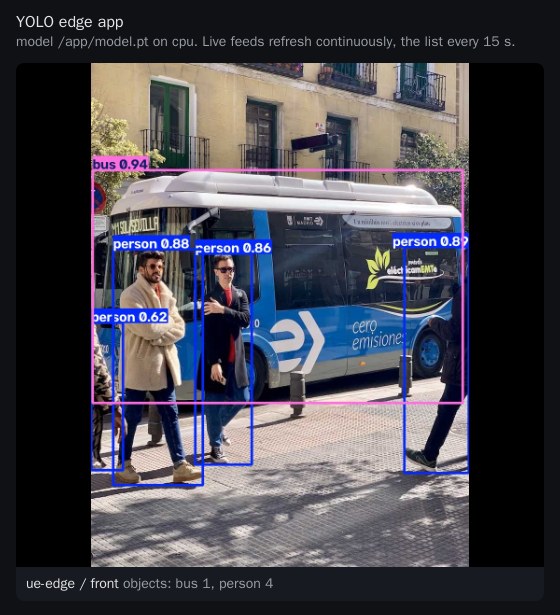
{"ok":true,"actor_id":"ue-edge","camera":"front","detections":{"total":5,"objects":{"bus":{"count":1,"best_conf":0.9402},"person":{"count":4,"best_conf":0.8882}}}}
The feed now shows as ue-edge / front on the application's page:
For a continuous camera feed from a simulated vehicle, continue with Lab 4.
When the UE cannot reach the application
Exposing the app outside the cluster
UEs on a physical radio and clients outside the cluster need an address on a network that the cluster announces. This is available on the detached path only. Set a fixed address (VIP) in the spec:
service:
    address: 192.168.50.240
brc cdk app deploy then creates a LoadBalancer Service with that address, a /32
CiliumLoadBalancerIPPool named <app>-pool, and a CiliumL2AnnouncementPolicy named
<app>-l2. First check that no existing Cilium load-balancer pool already covers the address.
If one does, set service.announce: false to reuse it.
L2 announcement only works on interfaces the node keeps. When the UPF's N6 attachment is a
host-device NetworkAttachmentDefinition, the physical interface moves into the UPF Pod and
the VIP cannot be announced on that segment. In that case, attach the application to the N6
network with Multus instead. Annotations in the spec land on the Pod:
annotations:
    k8s.v1.cni.cncf.io/networks: <n6-macvlan-nad>@edge0
The NetworkAttachmentDefinition must allow more than one attachment (macvlan or ipvlan).
A host-device NAD can only be used by the UPF.
Step 8: Open it from the MX-UI
The MX-UI lists every Service labelled kaliorexi.io/service-tab=true in the trirematics
and monitoring namespaces under Services, and opens it
inside the console. It reads the
entry's name, description, icon, path and port from kaliorexi.io/* annotations on that Service.
- On the detached path, the
uiblock of the spec sets the label and the annotations. - On the managed path, the
labelsandannotationsof the deployment-mode in Step 6 set them.
Two values decide whether the embedded view works:
pathis the base path the MX-UI proxies to. It defaults to/embed/services/<path-name>, which suits applications that can serve from a sub-path, such as Grafana. An application that serves from its own root, likeyolo-edge, needspath: /.portis the port the MX-UI proxies to. In the spec it can be a port name. The CDK resolves it to a number, because the MX-UI expects one.
Open Services in the MX-UI: the application appears as YOLO Edge, with the page of live feeds.
Without the MX-UI, forward the Service of a detached app to the machine running brc and open
http://localhost:9000/:
brc expose yolo-edge -n trirematics
Running on an NVIDIA GPU
The detached path can run the application on a GPU node. Three things must line up: the cluster exposes the GPU, the image carries CUDA-enabled libraries, and the spec asks for the GPU and for the NVIDIA runtime.
If any of the five is missing, the application either stays pending or runs on the CPU.
What the cluster must offer
The NVIDIA GPU Operator (or the device plugin and the container toolkit) advertises the GPUs
as the nvidia.com/gpu resource and installs a nvidia RuntimeClass. You do not need to
check this by hand: when the spec asks for GPUs, brc cdk app deploy verifies that the
runtime class exists and that a node matching the node selector offers nvidia.com/gpu, and
lists the GPU nodes it found before deploying:
INFO GPU nodes: jogo (4)
The count is in GPU shares. With time-slicing, which the GPU Operator can configure, one physical GPU is advertised as several units. Applications that hold one unit each share the GPU's compute time and its memory, with no isolation between them.
Build a CUDA-enabled image
The NVIDIA runtime injects the driver into the container, so the image only needs libraries
built for CUDA. In the Lab 3 Dockerfile this is the PyTorch wheel index. The repository's
app-gpu.yaml points TORCH_INDEX_URL at a CUDA build instead of the CPU one, under a
separate name so that the CPU image stays available:
app-gpu.yaml (differences from app.yaml)
name: yolo-edge-gpu

build:
    dockerfile: Dockerfile
    args:
        TORCH_INDEX_URL: https://download.pytorch.org/whl/cu128
        YOLO_WEIGHTS: yolo11n.pt
The CUDA version of the libraries must not be newer than what the node driver supports.
nvidia.com/cuda.runtime-version.full on the node gives that limit (13.0 for driver 580).
Expect a much larger image: about 7 GB, against 1.9 GB for the CPU variant.
Request the GPU in the spec
app-gpu.yaml (continued)
# One GPU share. The CDK adds nvidia.com/gpu to the requests and limits.
gpus: 1
# Run the container through the NVIDIA runtime, which mounts the driver and the devices.
runtime-class: nvidia
# Optional: the GPU request already restricts scheduling to nodes with free GPU shares.
node-selector:
    nvidia.com/gpu.present: "true"
runtime-class matters when the node's default container runtime is runc, which is the
usual setup: without it the application starts, but finds no GPU and falls back to the CPU
without an error. The application stays Pending when no node has a free GPU share.
Build, push and deploy as before, naming the spec file:
brc cdk app build -f app-gpu.yaml
brc cdk app push -f app-gpu.yaml
brc cdk app deploy -f app-gpu.yaml
Verify that the GPU is used
Check that the application landed on a GPU node, then open its page (the YOLO Edge GPU tab in the MX-UI). Its header names the inference device:
brc cdk app status yolo-edge-gpu
model /app/model.pt on cuda:0
Ultralytics picks cuda:0 on its own when PyTorch sees a GPU, so yolo-edge needs no extra
argument, and GET /health reports "device":"cuda:0". On an RTX 3070, yolo11n at
640x640 took about 3 ms per frame, against about 37 ms on four CPU cores. An application that
selects its device explicitly needs its own setting. For yolo-edge that is --device cuda
in the spec's args.
The CompositionModel of a managed edge-app carries no GPU request or runtime class yet,
so a GPU application has to run on the detached path. For xApps, brc cdk image build --cuda
starts from the CUDA base image and brc cdk model install --gpus 1 adds the GPU request.
Iterating
Rebuild and push the image, then restart the application:
Detached: every deploy stamps a fresh cdk.bubbleran.io/deployed-at annotation, so the
application restarts and pulls the new :latest image:
brc cdk app build && brc cdk app push && brc cdk app deploy
Managed: install the model again. This restarts the running Elements of the app, which pull
the new :latest image:
brc cdk app build && brc cdk app push && brc cdk app model install
Removing the application
Detached:
brc cdk app delete              # takes the name from app.yaml
brc cdk app delete yolo-edge    # or by name
This removes the release, and with it the application, its Service and the address pool and policy. Nothing else in the namespace is touched. The image stays in the registry.
Managed: remove the entry from the Network's edge: section, or remove the Network
(brc remove network edge-ai.yaml). Then remove the model once no Network uses it:
brc cdk app model delete
Spec reference
| Field | Meaning |
|---|---|
name | App name. Becomes the Pod, Service and release name. |
image | Image reference. Defaults to the cluster-local registry path. |
build.dockerfile / .context / .target / .args | Inputs for brc cdk app build. |
replicas | Defaults to 1. |
image-pull-policy | Defaults to Always for a :latest or untagged image, so a redeploy runs the newly pushed image, and to IfNotPresent for a pinned tag. |
image-pull-secret | Defaults to local-harbor for an image in the cluster-local registry, and to bubbleran-hub otherwise. Set it empty for a public registry. |
command / args | Override the container entry point and arguments. |
env | Environment variables, rendered in sorted order. |
ports[].name / .port / .transport / .node-port / .expose | Container ports. transport defaults to tcp. expose: false keeps a port off the Service. |
gpus | Adds nvidia.com/gpu to the requests and limits. See Running on an NVIDIA GPU. |
runtime-class | For example nvidia, needed for a GPU when the node's default runtime is runc. |
node-selector / tolerations | Scheduling. |
resources.requests / .limits | Passed through as they are. |
probes.readiness / .liveness | path gives an HTTP probe, no path gives a TCP probe. Also port, initial-delay, period, timeout, failure-threshold. |
service.type | ClusterIP (default), NodePort or LoadBalancer. |
service.address | A fixed VIP. Implies LoadBalancer and creates the announcement. |
service.announce | false reuses a pool that already covers the address. |
ui.name / .description / .icon / .path-name / .path / .port | The MX-UI entry. |
labels / annotations | Extra labels on every object, extra annotations on the Pod. |
Known limits
- A detached edge-app is not part of any Network's lifecycle. Nothing restarts it with the
Network, the Network status does not report it, and
brc observedoes not list it. Usebrc cdk app statusinstead. - A managed edge-app has fewer options. It runs the image
CMDwith no extra environment, its Service is always ClusterIP, and theCompositionModelcarries no node selector or runtime class, so a GPU application belongs on the detached path. - Volumes are not in the spec. An application that needs persistent storage or a mounted configuration file needs a hand-written manifest for now.